Overview
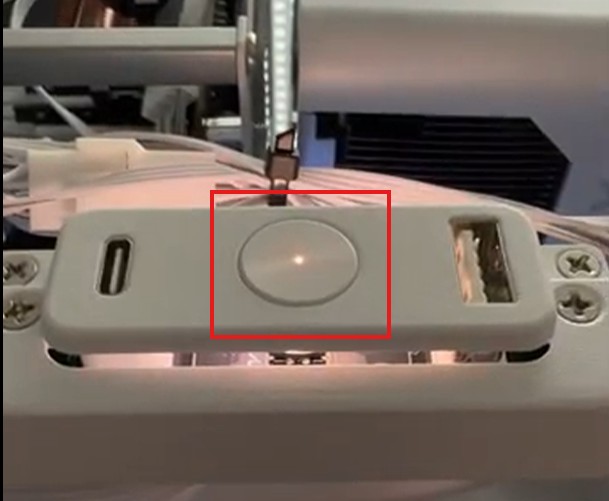
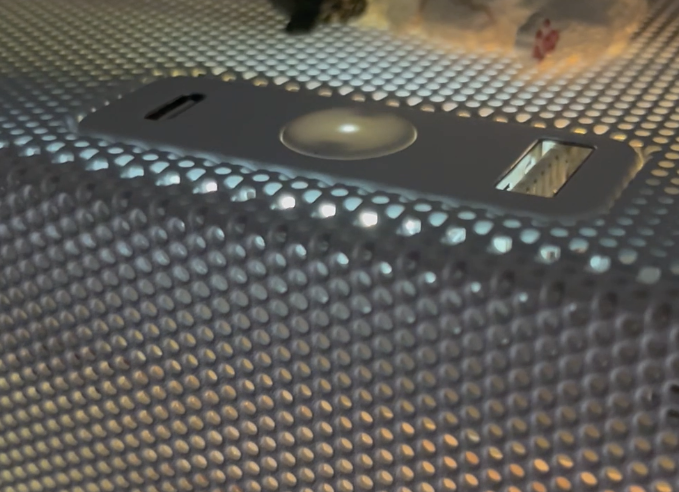
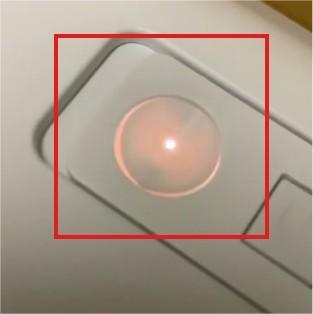
The red/white LED flicker on your SSUPD case is part of our dual-LED power button design — not a defect. It shows drive activity and system state. You can disable the red LED via BIOS settings or cable breakout (see below).
 |  |  |
What the LED Flicker Means
Our power button integrates two LEDs:
- White LED: System power status
- Red LED: SSD/HDD activity status
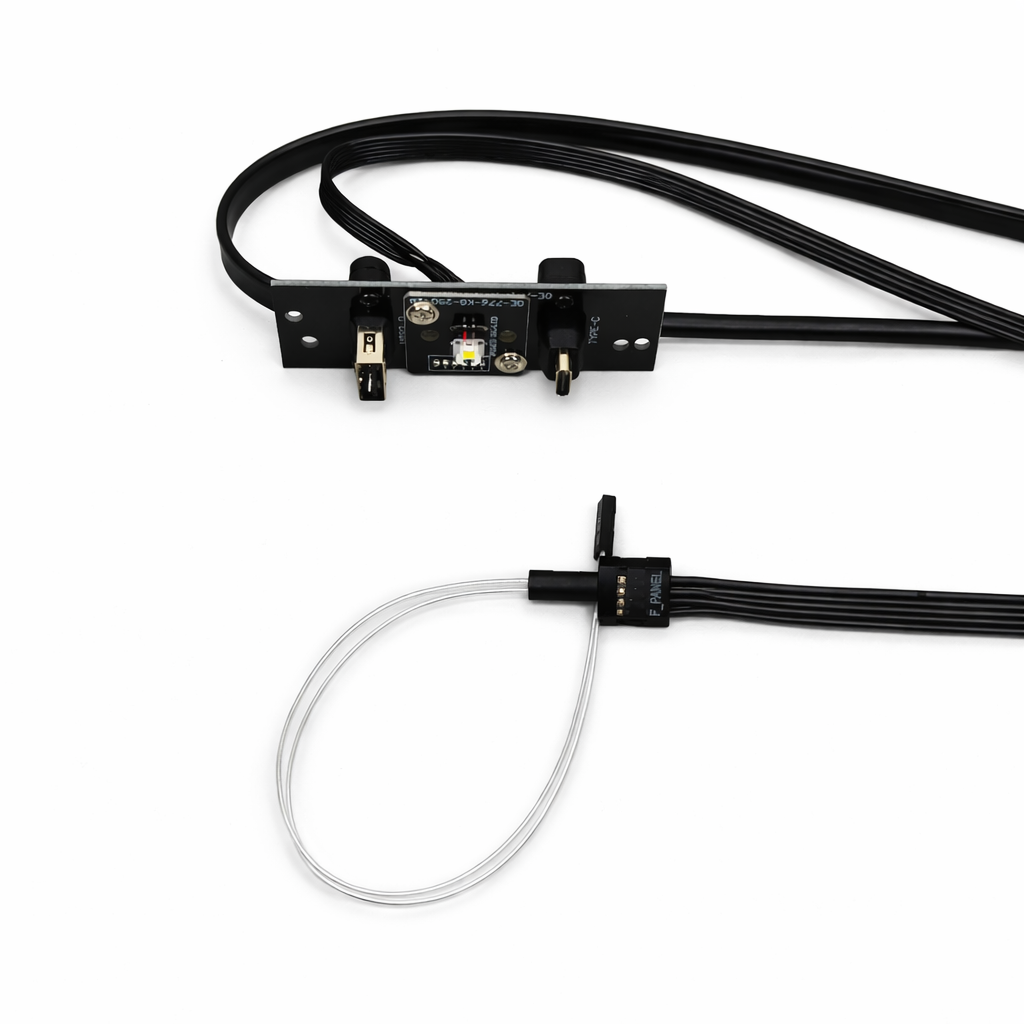
These LEDs connect to your motherboard’s F_PANEL header, and their behavior depends on your BIOS and system activity.
LED Behavior Reference Table
| Behavior | Meaning | Normal? |
| White LED always on | System powered on | ✅ Yes |
| Red LED flickers frequently | Drive read/write (SSD/HDD in use) | ✅ Yes |
| Red LED pulses in standby | Sleep mode (BIOS-controlled) | ✅ Yes |
| Red LED always on, no blink | Possible freeze, bad SSD, reversed pins | ⚠️ Check |
| Red LED flickers but system dead | Debug signal from motherboard standby power | ❌ No |
How It's Wired (And How to Disable the Red Flicker)
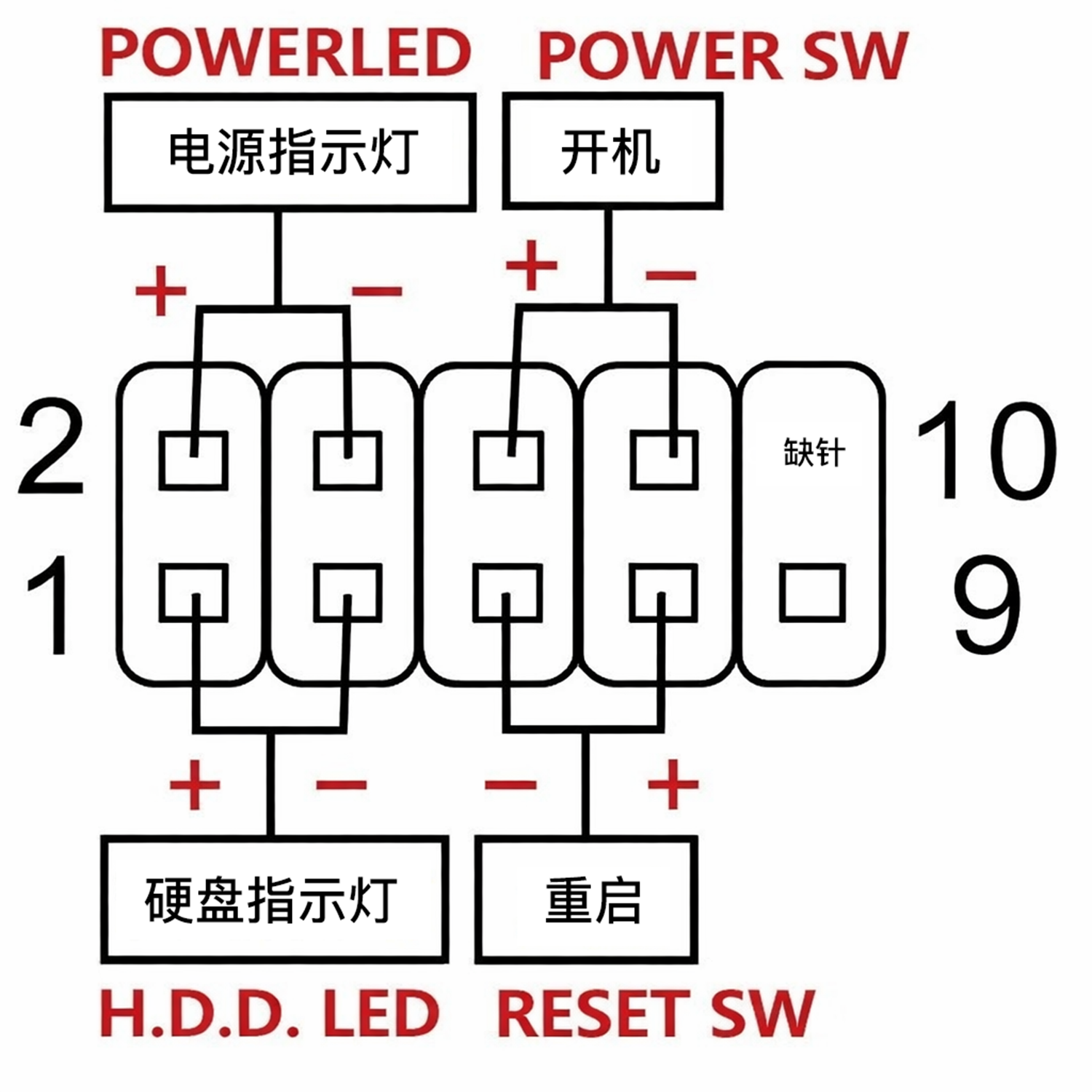
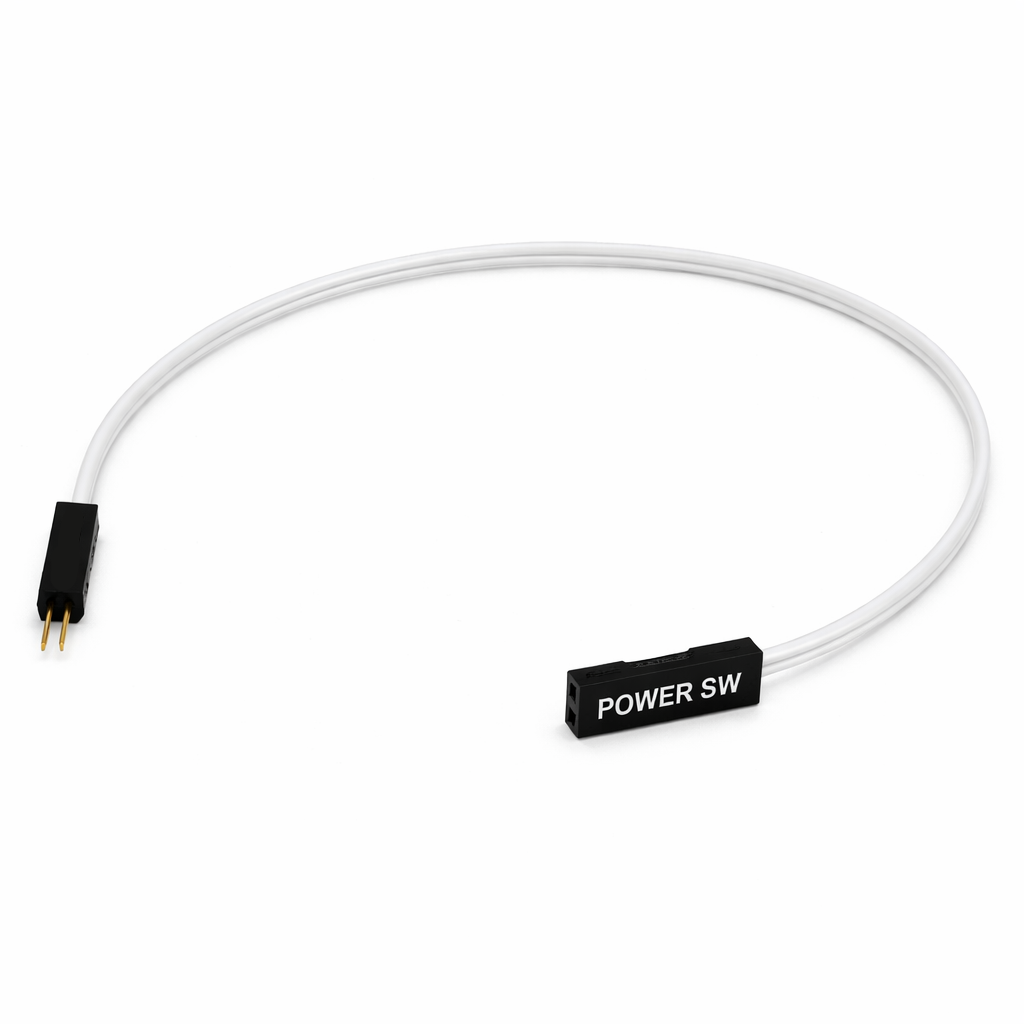
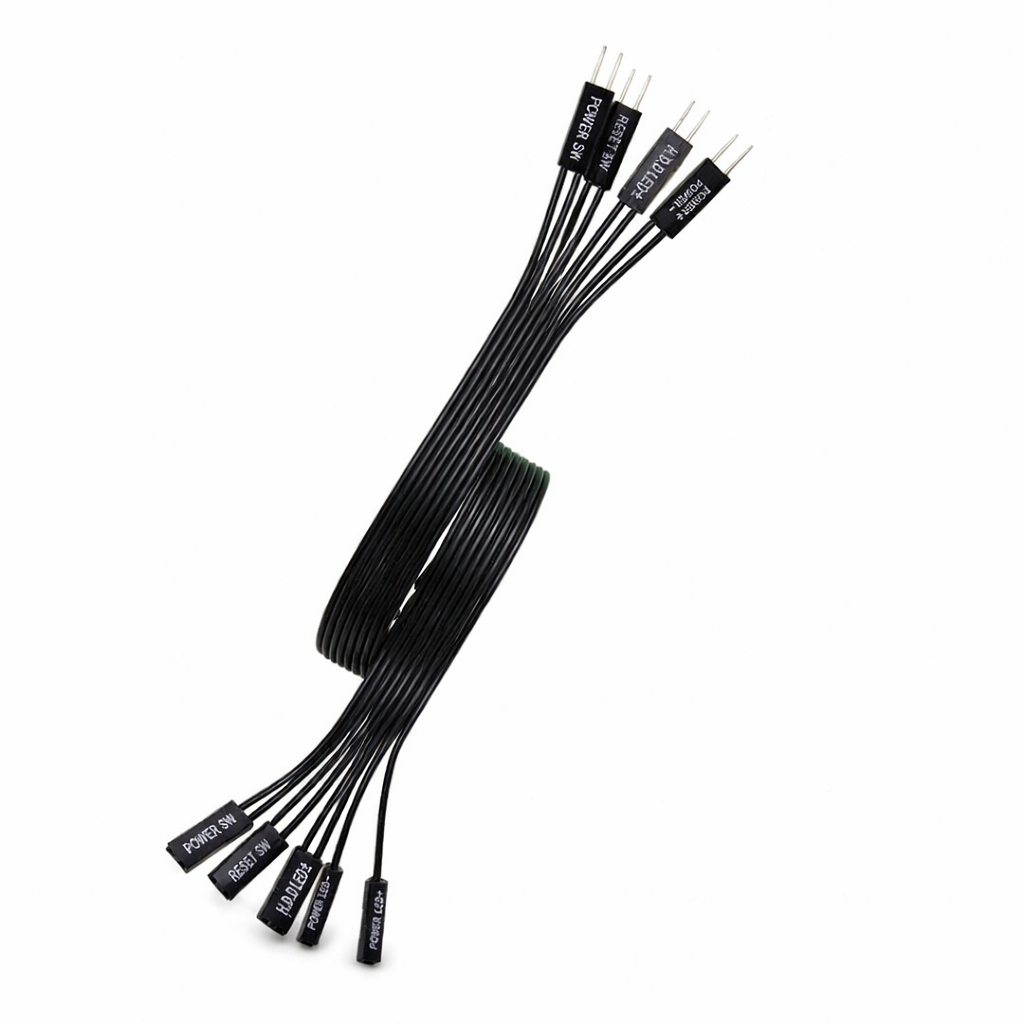
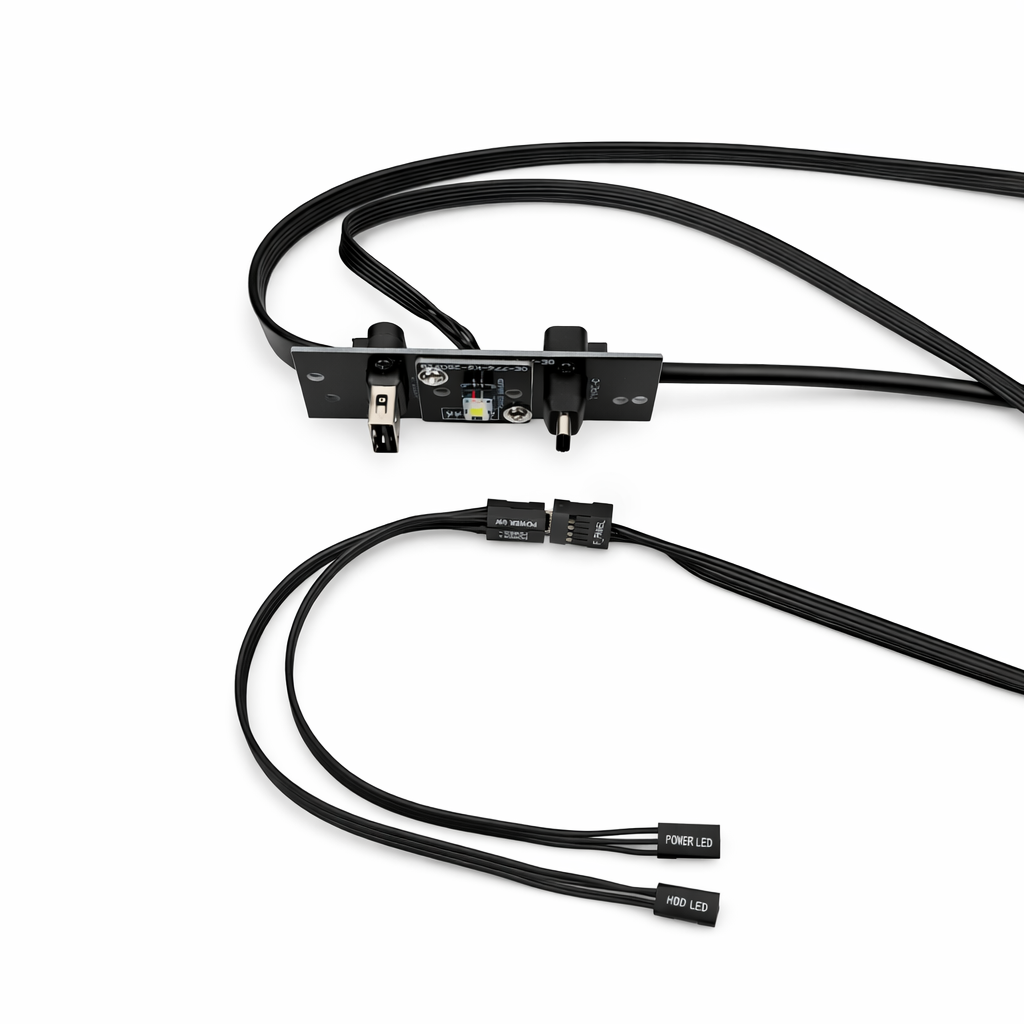
Breakout Cable with Individual Pins
Individual header connectors with breakout cable | HDD LED / Power separately routed from the same PCB | ||
 |  |  |  |
BIOS Settings (To Disable LED Behavior)
Some motherboards support disabling the red LED flicker via BIOS:
- ERP / Deep Sleep Mode → Prevents red LED from blinking when off
- Power LED Sleep Mode → Stops red LED in sleep
- HDD Activity LED → Can be disabled entirely
Refer to your motherboard manual under:
- Power Management
- LED Control
- ACPI Sleep Options
When the Red LED Flickers While the System is Off
If your PC is fully shut down but the red LED still flickers:
- This is usually caused by standby voltage sent to HDD LED pins
- Enable ERP Mode / Deep Sleep in BIOS to stop it
- If system won’t boot, consult your motherboard’s error code table
When to Replace the Power Button Module
Only request a replacement if:
- The switch physically fails (no click / no response)
- The white LED never lights up, even when powered on
- You’ve confirmed correct wiring & BIOS settings
In those cases, we offer replacement power button modules:
?Submit a Support Ticket Here → Submit RMA Ticket
⚠️ Make sure to request the correct module version (Xhuttle, Meshroom S, Meshroom D)
| Xhuttle Power Button | Meshroom S/D & Meshlicious Power Button Set |
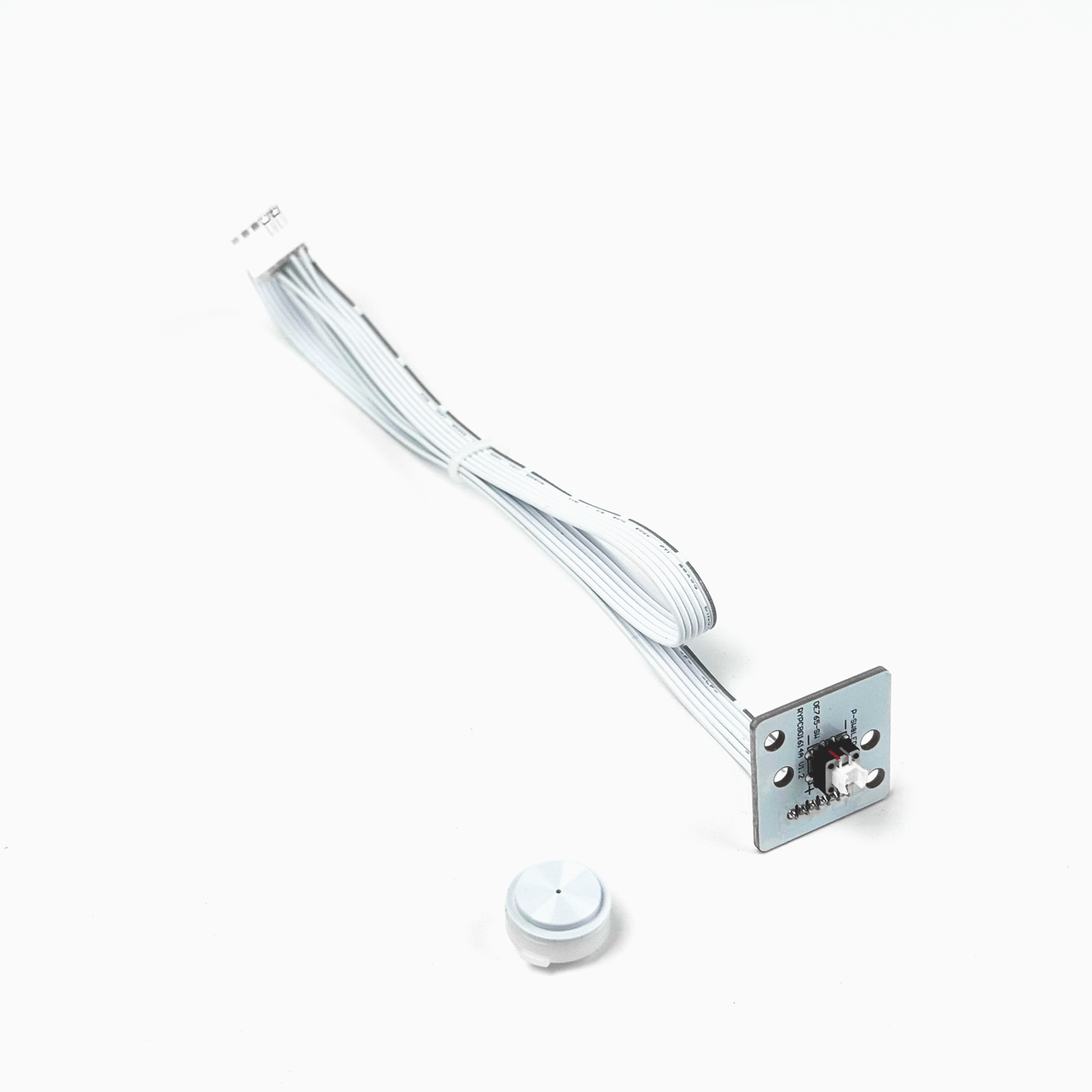 | 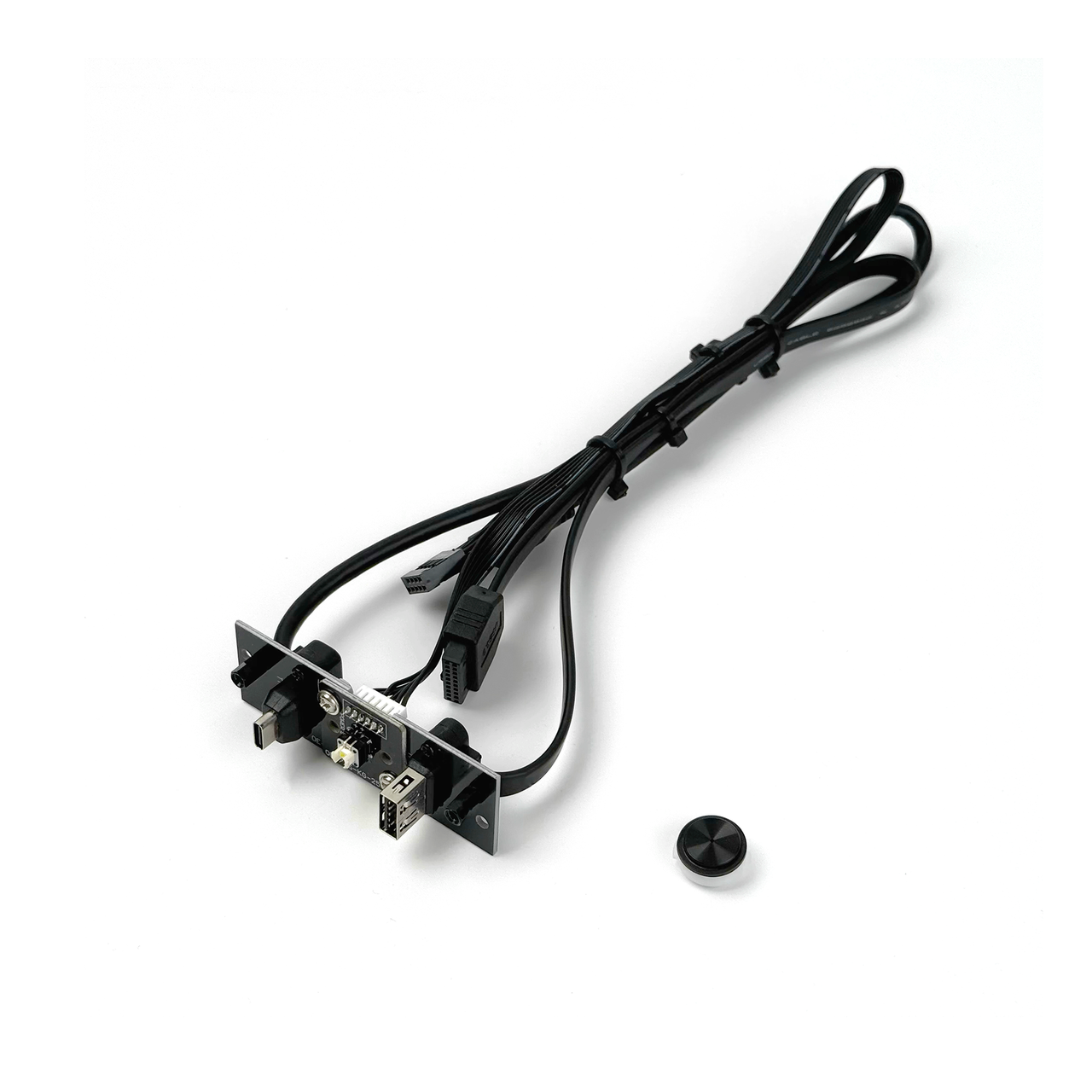 |
Summary Table: Solutions to Red Flicker
Use Case Recommended Action Want to keep all LEDs Use 9-pin unified cable (default) Only need Power ON (no red LED) Use breakout cable; plug in Power SW only BIOS flicker persists after shutdown Enable ERP / Deep Sleep in BIOS Debug flicker or always-on red LED Check SSD, reverse pins, or unplug HDD LED
Was this article helpful?
That’s Great!
Thank you for your feedback
Sorry! We couldn't be helpful
Thank you for your feedback
Feedback sent
We appreciate your effort and will try to fix the article